
You can export content from several Microsoft 365 applications, including OneDrive, Sway, Outlook People (Contacts), and OneNote.
Export files from OneDrive:You can download files and folders from OneDrive Online to your computer.
Download files or folders:
- Sign in to your Microsoft 365 account and open OneDrive.
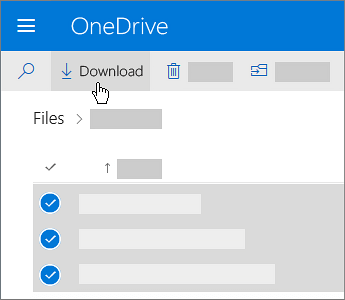
- Select the file or folder you want to download.
- Select Download.
- If prompted by your browser, choose Save or Save As, then select where you want to save the download.
Downloading multiple files:
- If you download multiple files or folders, they will be downloaded as a .zip file.
- If you select Download while inside a folder without selecting any items, all contents of that folder will be downloaded.
Notes:
- OneNote notebooks cannot be downloaded directly from OneDrive. If a folder contains a OneNote notebook, the downloaded .zip file will include a text file explaining that the notebook could not be downloaded.
- If the Download button disappears after refreshing the page, navigate up one folder level and then return to the folder, or reopen the folder in a new browser tab.
- Internet Explorer does not support downloading folders or multiple files from OneDrive for Business. Use Microsoft Edge or Google Chrome instead.
- Download limits are:
- Maximum individual file size: 15 GB
- Maximum .zip download size: 20 GB
- Maximum number of files per download: 10,000
Export a Sway:
Sway presentations can be exported for offline viewing, sharing, or printing.
Print a Sway:
- Open your Sway.
- Select the … (More options) menu in the top-right corner.
- Select Print.
- Sway creates a PDF that you can print or save.
Export a Sway to Word or PDF:
- Open your Sway.
- Select the … (More options) menu.
- Select Export.
- Choose either:
- Word document
- Save the exported file to your computer.
Export contacts from Outlook (People):
- Sign in to your Microsoft 365 account.
- Select the App Launcher (waffle icon) in the top-left corner.
- Open People.
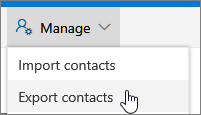
- On the toolbar, select Manage > Export contacts.
- Choose whether to export:
- All contacts, or
- Contacts from a specific folder.
- Select Export.
- Save the contacts.csv file when prompted.
Export a OneNote notebook:
To export a notebook, you must use the desktop version of OneNote 2016.
- Sign in to your Microsoft 365 account.
- Open OneNote in your web browser.
- Open the notebook you want to export.
- Select Open in OneNote.
- Open the notebook using the OneNote 2016 desktop application.

- In OneNote, select File > Export.
- Under Export Current, select Notebook.
- Choose the export format you want.
- Save the exported notebook to your computer.
Note: If OneNote 2016 is not installed on your device, refer to the knowledge base article How to install Microsoft 365 Apps for Students.
Large notebooks that contain many images or file attachments may take a considerable amount of time to export. Ensure you have sufficient free disk space before starting the export.