
Creating a MyNMIT account allows you to apply for programmes, manage your applications, upload documents, and access other online services.
Create your account- Go to the MyNMIT page.
- Complete the registration form in the Create an account section.
- Select Register.
Confirm your email address
After you register, a confirmation email with the subject MyNMIT – Confirm your email will be sent to the email address you used when creating your account.
The email may take a few minutes to arrive.
If you haven't received it after 5–10 minutes, check your:
- Spam or Junk folder
- Promotions folder (if using Gmail)
When you receive the email, select the Confirm your email button to continue.

Create your password
Enter a password that meets the on-screen password requirements, then enter it again to confirm.

Why does it say my password has appeared in a data breach?
When you create a password, MyNMIT checks whether it has appeared in known public data breaches.
If you see this warning, choose a different, unique password that you do not use for any other online account. This helps keep your account secure.
If you are a current NMIT student, your MyNMIT password is separate from your NMIT Microsoft 365 (Office 365) password. Changing one does not change the other.
Sign in to MyNMIT
After your password has been created successfully, you will be taken to a confirmation page.
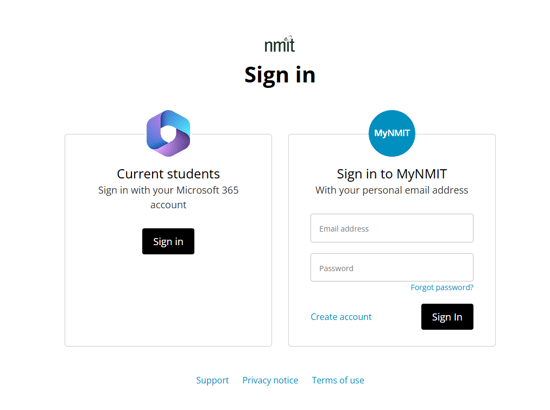
Select the link to return to MyNMIT, then sign in using:
- The email address you registered with
- Your new MyNMIT password